How to Use H1, H2 and H3 Tags (With Examples)
Should that subheading be an H2 or an H3? Follow a newsletter signup example to see how HTML headings organize a post, how to fix a skipped heading level and how to check what WordPress publishes.
Opus Rank
Team ·

You add a subheading in your blog editor and the preview looks right. But should that line be an H2, an H3 or a bold paragraph? Learning how to use H1, H2 and H3 tags starts with deciding where each topic belongs. A newsletter signup example shows how to structure those headings, fix a skipped level and check what your editor publishes.
What H1, H2 and H3 Tags Do
HTML heading tags give each heading a level that reflects its place on the page. That structure helps readers scan for the section they need. It also lets screen reader users pull up a list of headings and jump directly to a section.
H1 Names the Page’s Main Topic
The H1 is the main heading readers see on the page. For a typical blog post, use one clear H1 that tells readers what they’ve opened. The HTML <title> element supplies the browser tab text. Google can use either the <title> or the visible H1 when generating the clickable title in search results.
H2 and H3 Organize Sections and Subsections
Use H2 for a major section and H3 for a topic within that section. If a topic can stand alongside the other main sections, give it an H2. If it answers a narrower question under the preceding H2, give it an H3. Choose the level by meaning and adjust the font size separately.
How to Use H1, H2 and H3 Tags in a Blog Post
A newsletter signup tutorial gives each heading level a distinct job. The H1 names the task and the H2s break it into decisions and actions. The H3s help readers find details about individual form fields.
A Correct Heading Hierarchy in HTML
Here’s how the headings look in the order they appear on the page. The article’s paragraphs would go beneath the headings they explain.
<h1>How to Set Up a Newsletter Signup Form</h1>
<h2>Choose What to Ask For</h2>
<h3>Email Address</h3>
<h3>First Name</h3>
<h2>Test the Signup Form</h2>
“Email Address” and “First Name” both belong under “Choose What to Ask For.” Moving directly from the final H3 back to H2 is valid because “Test the Signup Form” starts a new main section.
How to Fix a Skipped Heading Level
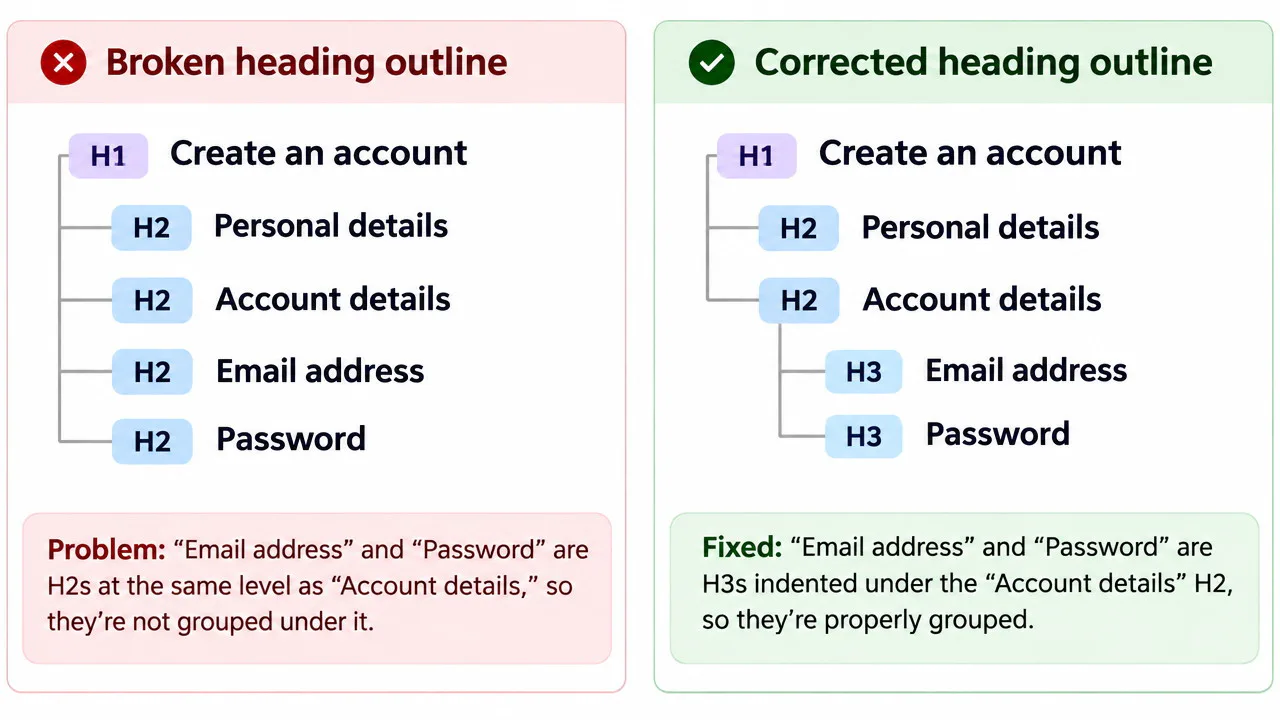
Suppose the draft uses H3 for “Choose What to Ask For” immediately after the H1. The two field headings would sit at the same level as the heading they belong under. Promote “Choose What to Ask For” to H2 and keep both field headings at H3. The change makes the relationship clear when someone scans the headings in order.
How to Check Heading Tags Before and After Publishing
Check the headings in the editor and again on the published page. The editor shows the levels you chose for the draft. The live page shows how the template renders the title and headings together.
Set Heading Levels in the Editor
In WordPress, add a Heading block and choose H2 for “Choose What to Ask For.” Set “Email Address” and “First Name” to H3. Open Document Overview and select Outline to review the headings. WordPress usually uses the post title as the H1. Check how your theme renders it before adding an H1 inside the post body.
Verify the Headings on the Published Page
In Chrome, right-click “Choose What to Ask For” and select Inspect. The Elements panel should show an <h2> tag. If the line looks like a heading but appears as a <p> tag, use the Accessibility tab to check its role. If it’s a paragraph that introduces a section, change it to a Heading block and verify the published page again.
Conclusion
To practice how to use H1, H2 and H3 tags, read the headings on a draft without its body text. Can someone tell what the post covers and where to find each answer? If an H3 seems out of place, move it under the H2 it belongs to or give it its own section. Once the structure reads clearly, use your editor’s typography controls or CSS to adjust how the headings look.
Frequently Asked Questions About H1, H2 and H3 Tags
Can a page have more than one H1?
HTML allows multiple H1 elements in some cases. For a typical blog post, one clear H1 gives the page a recognizable main heading.
Does Google care about heading order?
Google’s SEO Starter Guide says heading order doesn’t matter for Google Search. A logical order still helps screen reader users follow the relationship between sections and subsections.
Does every H2 need an H3?
A short section can go straight from its H2 to a paragraph. Add H3s when the section contains distinct topics readers may want to find.
Should every heading include the target keyword?
Use the target phrase in the H1 when it describes the page accurately. Give each subheading a label that tells readers what they’ll find there. For example, “Test the Signup Form” names the next action without repeating the full post title.