Best Tools That Publish Straight to WordPress, Webflow, Ghost
Skip the copy and paste. These six tools send articles straight to WordPress, Webflow and Ghost. Compare how they handle drafts, scheduling and approvals, and see which fields you’ll still need to fill in yourself.
Opus Rank
Team ·
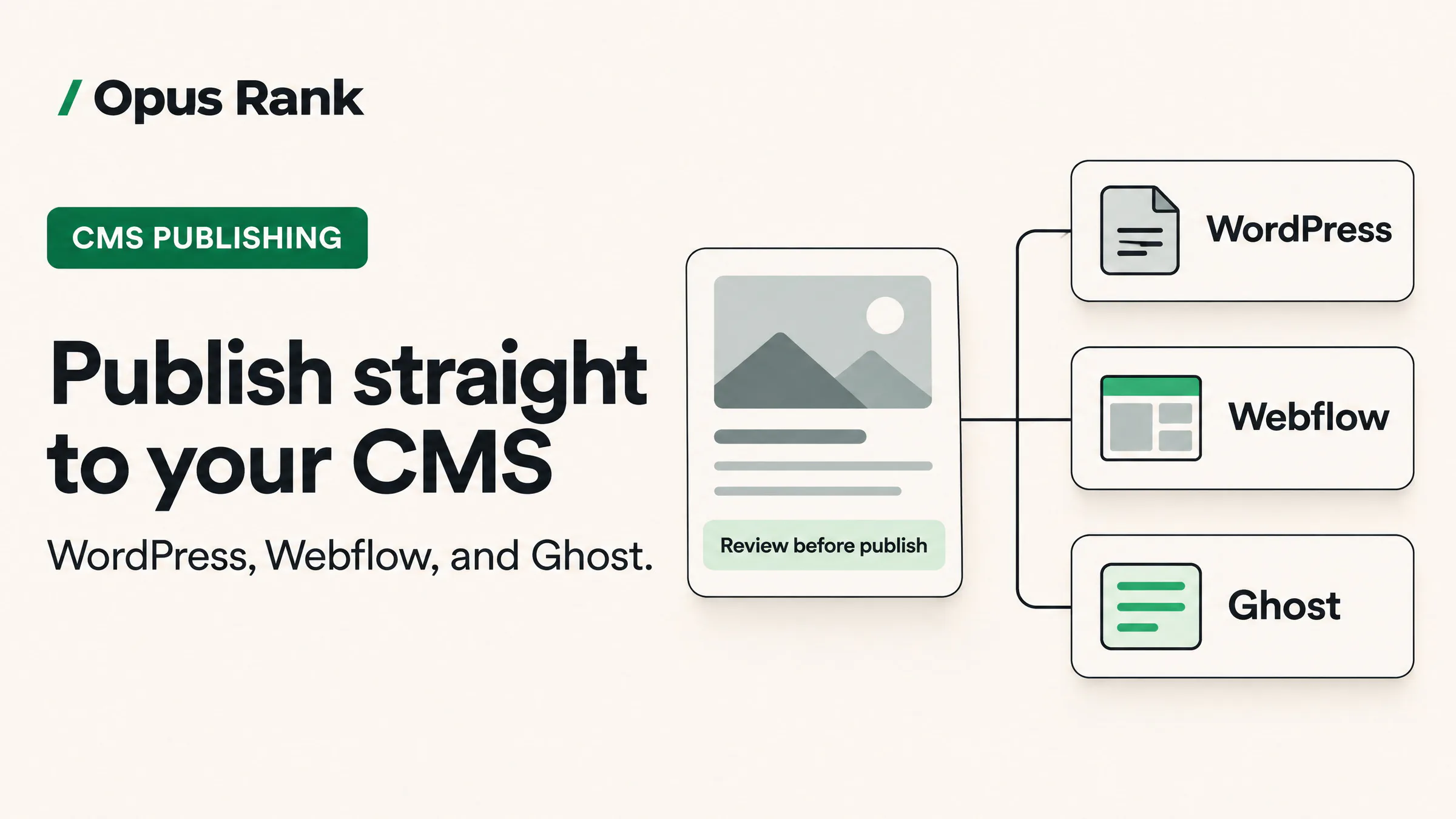
You've finished editing the article and cleared it for publication. Now someone has to paste it into the site editor, upload the featured image and fill in the SEO description. A direct publishing integration can handle much of that work by creating a post or collection item in your content management system (CMS). Some connections use a plugin, which still lets you send the article straight from the writing tool.
All six tools below connect to WordPress, Webflow and Ghost. The differences show up when you need someone to approve a post, schedule it or check which fields made it across.
Opus Rank publishes this guide and appears in the list. The comparison is based on publicly available product documentation.
How we chose the best tools for direct CMS publishing
Each tool had to document a built-in connection to all three platforms. We compared setup, publishing options, the fields each integration transfers and the controls available for editorial review. We also looked at which plans include publishing where vendors specify that information.
Sending a draft gives you a chance to preview the article in your site's theme. Choose Publish now to make the post live or schedule it for later. A tool can support different options for different destinations. In Webflow, unpublished CMS content can be stored as a staged item. A staged item becomes visible on your site once you publish it.
Six tools that publish to WordPress, Webflow and Ghost
1. Opus Rank for SEO planning and editorial review
Opus Rank suits small teams that want to plan topics, write SEO articles and review edits in one workspace. When an article is ready, you can send the last saved version to your CMS as a draft, publish it immediately or schedule it. The publishing history records the result so you can check whether the article reached its destination. (Opus Rank publishing guide)
Where an article waits for its release depends on the CMS. Opus Rank hands a scheduled post to WordPress right away. For Webflow, it holds the article and submits it at the chosen time. You'll need a plan that includes direct CMS publishing. If you use Autopilot, its review step is on by default. (WordPress setup, Webflow setup, Autopilot features and plan comparison)
2. StoryChief for team approvals
StoryChief fits teams where several people may need to sign off before a post goes live. An admin can require reviews and decide whether one reviewer or every requested reviewer must approve. Once the team approves an article, the writer can choose the publishing channel and set a release time.
Each publishing channel has its own setup steps. In Webflow, you authorize the connection, select a collection and choose which fields StoryChief fills. In Ghost, you supply an Admin API key and the API URL. StoryChief documents draft previews for WordPress and Webflow. If you publish to Ghost, check the preview options before building your approval process around a CMS draft.
3. Byword for custom Webflow CMS fields
Byword is a good fit when your Webflow collection stores the article body, featured image and SEO description in separate fields. After you authorize the connection, you can tell Byword which collection fields should receive each part of the article. Send a draft first and check that the template displays the image and uses the right description. Byword also supports publishing a Webflow item immediately.
You'll need a paid plan to use Byword's publishing integrations. Byword can publish articles as WordPress posts or pages. Its Ghost integration supports tags and SEO settings.
4. Arvow for recurring blog publishing
Arvow fits publishers who want to generate new articles on a regular schedule. For a weekly series, you can choose a day and time, select a template and queue the topics. Arvow can generate each article for manual review or generate it and publish it automatically to the connected site.
With the WordPress plugin, you can choose draft or live status. Webflow lets you map the article body, meta description and featured image. Arvow's integration requires Ghost 5 or later and supports draft, live and scheduled posts.
5. Autoblogging.ai for batch article production
Autoblogging.ai suits teams that want to generate several articles together and send them to a CMS draft queue. In Bulk mode, choose the destination and decide whether the batch should arrive as drafts or go live. If a transfer fails, the publishing history shows the outcome and lets you retry it.
Auto Post sends each article to one CMS site. Webflow and Ghost connections require a paid plan. The WordPress plugin can pass SEO metadata and structured data. The Webflow guide lists the title, URL slug and article body.
6. WritingTools.ai for publishing from the editor
WritingTools.ai suits writers who edit and send articles one at a time. Its editor can send a draft or publish immediately to WordPress, Webflow or Ghost. The WordPress plugin can include featured images and SEO fields. The Ghost connection sends the title and body along with the publishing status you select.
If you run a Ghost newsletter, send a draft and finish the post in Ghost. Assign the author and add tags and a featured image in Ghost. Then choose whether to send the post to subscribers.
How to choose a publishing tool for your CMS
WordPress publishing
Send a sample article as a draft and open it in the WordPress editor. Preview the page to check headings, links and the featured image. Confirm the categories and tags in the editor. Then open the site's SEO plugin and check whether it received the meta title and description.
Webflow CMS publishing
Check that the article lands in the right collection and fills the fields your template uses. Preview the page and inspect the URL slug, featured image and SEO description. If you use staged content, verify what action makes the item live.
Ghost publishing
Open the draft in Ghost and verify the author, tags, featured image and access level. A post intended for paid members needs the right access setting before it goes live. If you also plan to email it, check the email preview and confirm which subscribers will receive it.
FAQs about publishing straight to WordPress, Webflow and Ghost
Can I send a draft to my CMS before it goes live?
Yes, as long as the integration can create drafts in your CMS. A draft in your writing tool stays there until you send it. A CMS draft lets you preview the article in your site's theme before readers see it.
Can a publishing tool schedule posts across all three CMSs?
It depends on the tool, the plan and the destination. Check where the post waits until publication and which time zone the scheduler uses. Ghost's built-in scheduler uses the time zone configured for your publication.
Does publishing to Ghost also send the newsletter?
Ghost offers web-only publishing, email-only delivery and both together. Check which of those options your publishing tool supports. If it only creates a post, finish the newsletter send from Ghost.
Send a test draft before choosing a tool
The best tool for your site is the one that transfers the fields you use and gives your team control over when posts go live. Try it with a representative article that includes an image, internal links and an SEO description. If you're trying Opus Rank, follow the setup steps for your publishing platform.