How to Track AI Search Traffic in GA4
Did anyone click through after ChatGPT linked to your site? Use GA4’s built-in AI Assistant channel to find visits from ChatGPT, Perplexity and Claude. Learn when to create a custom channel, how to measure landing pages and signups and where to check visibility in Google’s AI Overviews and AI Mode.
Opus Rank
Team ·
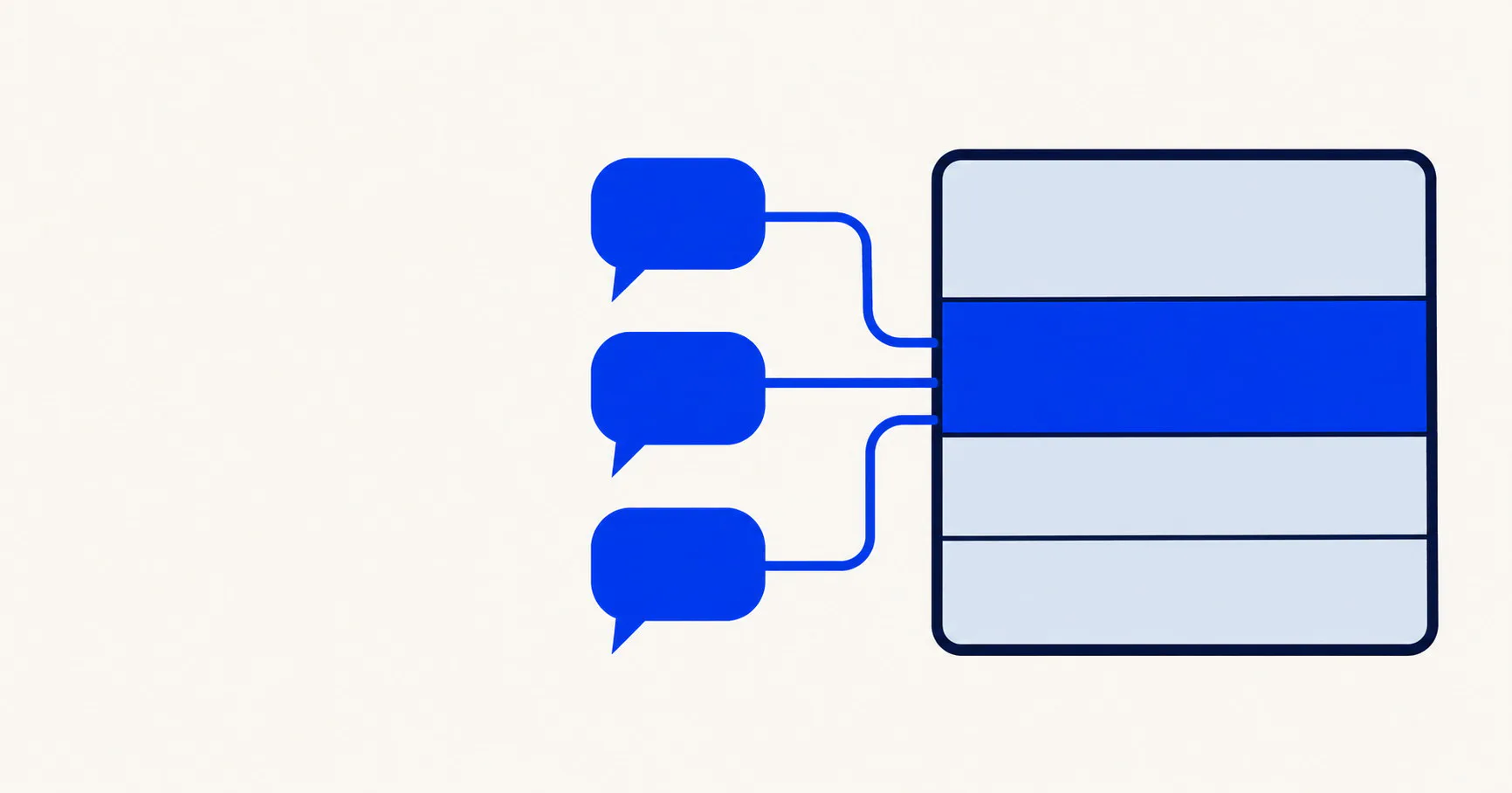
Finding your site linked in a ChatGPT answer feels promising. The next question is whether anyone clicked through, read a page or signed up. Learning how to track AI search traffic in GA4 starts with the built-in AI Assistant channel. From there, you can check which platforms sent visitors, where those visitors landed and whether they took an action that matters to your business.
How to Track AI Search Traffic in GA4’s Traffic Acquisition Report
GA4 assigns the ai-assistant medium when it recognizes a visit’s referrer as an AI assistant. The referrer identifies the site or app that sent the visit. Sessions with that medium appear in the AI Assistant channel.
Open the Built-In AI Assistant Channel
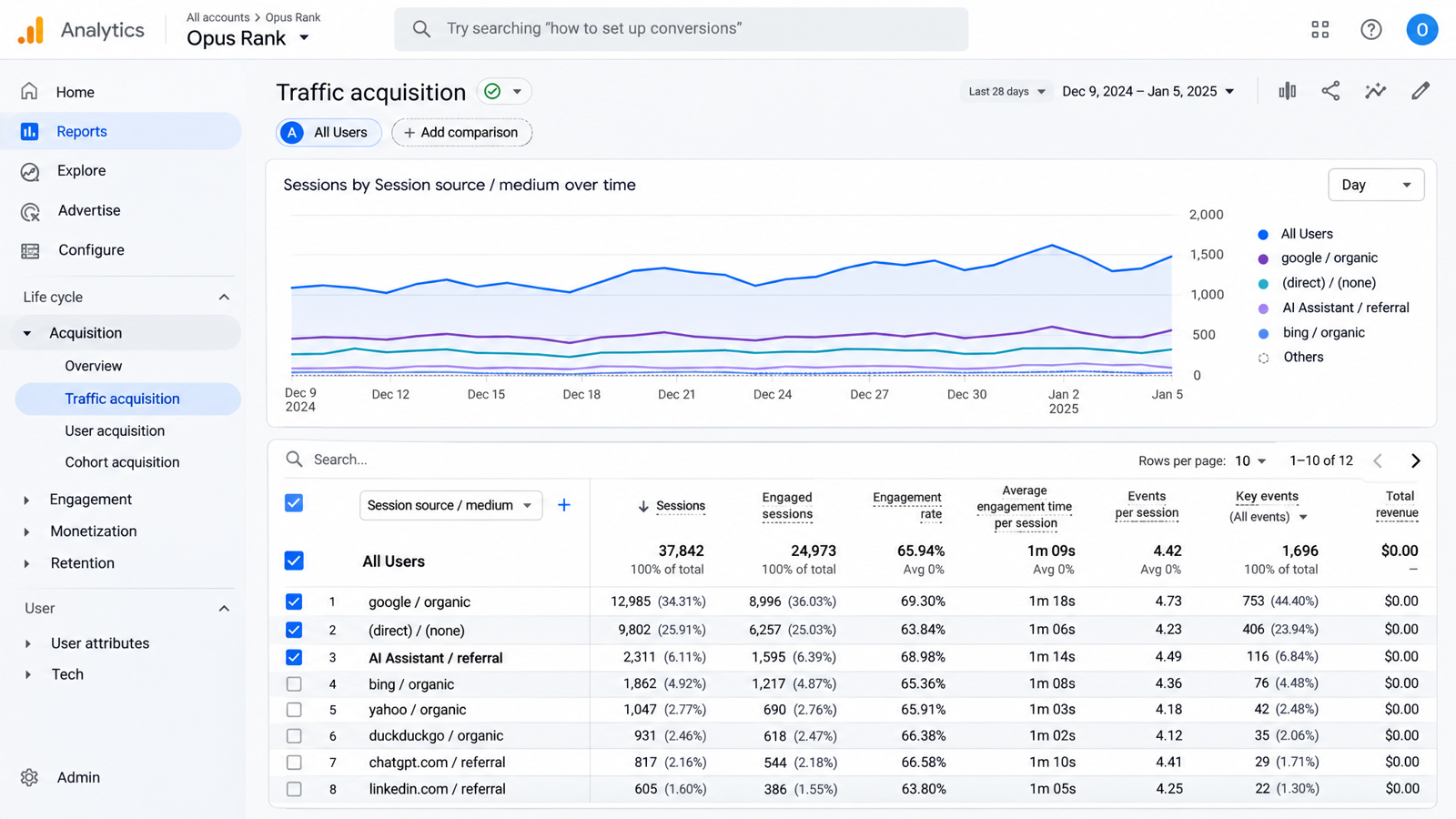
Go to Reports → Acquisition → Traffic acquisition and select the date range you want to review. Set the first column to Session default channel group and look for the AI Assistant row. Start with Sessions to see how many visits GA4 grouped under that channel.
A session groups interactions that happen during a visit. Suppose someone first finds your site through Google and later returns through ChatGPT. The second visit can appear under AI Assistant in Traffic acquisition. The User acquisition report describes how that person first found your site.
Check ChatGPT, Perplexity and Other Sources Individually
Switch the first column to Session source / medium and search for domains such as chatgpt.com, perplexity.ai and claude.ai. The source identifies where the session came from. The medium describes the type of traffic GA4 recorded.
For example, a row labeled perplexity.ai / referral shows Perplexity sessions recorded with the referral medium. This check helps you decide whether the built-in channel captures the sources you want to report.
When to Create a Custom GA4 Channel for AI Referrals
Create a custom channel group if your source check turns up assistant domains outside the built-in channel. The group can also classify older sessions when GA4 recorded a source that matches your rule.
Build a Rule Using Observed Assistant Domains
With Editor access, open Admin → Data display → Channel groups and create a copy of the default group. Open the AI Assistant channel in the copied group. Keep its existing medium rule and add a separate OR condition using Source → matches regex. A regular expression, or regex, is a pattern that matches text.
This example matches three exact domains that might appear in your report.
^(chatgpt\.com|perplexity\.ai|claude\.ai)$
Use the exact domains you found in your own report. Move the copied AI Assistant channel above Referral and save the group. GA4 checks the rules in order and assigns traffic to the first matching channel.
Verify the Custom Group Against Session Sources
Return to Traffic acquisition and select your custom session channel group. Compare its AI Assistant total with the default group for the same dates. If the total rises, check which source rows account for the difference.
Measure Landing Pages and Signups From AI Traffic
Once you know which assistants send visitors, check where those visitors land and whether they sign up. In Traffic acquisition, select Session source / medium and add Landing page + query string as the secondary dimension. This shows where each session began alongside its source.
Suppose an Opus Rank SEO explainer gets more assistant sessions than the product page. The product page could still generate more signups. Mark completed signup as a key event and compare Sessions, Key events and Session key event rate for that action. The rate measures the share of sessions with a signup. Across ten sessions, one signup takes the rate from zero to 10%. Read the rate alongside the session count.
What GA4 Can Tell You About Google AI Overviews and AI Mode
GA4 groups visits from non-ad links in Google’s AI Overviews and AI Mode under Organic Search. Those sessions appear alongside visits from other Google search results.
To see which pages appeared in Google’s AI features, open the Generative AI performance report in Search Console and select Pages. The report shows impressions, which count how often Google displayed links to your site in those features. Clicks from these features contribute to the broader Search results performance report. If impressions rise for a page while its GA4 Organic Search sessions stay flat, report both observations. The session total alone can’t isolate visits from Google’s AI features.
Conclusion
Once you know how to track AI search traffic in GA4, make it part of your monthly review. Record which assistants sent measurable visits, where those visitors landed and how often they signed up. Use Search Console’s impression report to see which pages gained visibility in Google’s AI features over the same period.
FAQ
Why Is the AI Assistant Channel Missing or Empty?
Check that you’ve selected the correct property and date range. Then search Session source / medium for assistant domains to see whether GA4 recorded visits under another channel.
Can a Custom Channel Group Recover Older AI Traffic?
It can group older sessions if GA4 recorded a source that matches your rule. Apply the custom group to your historical date range to see those sessions together.
Can AI Assistant Visits Appear as Direct Traffic?
A visit can appear as (direct) / (none) when GA4 lacks a clear source. Bookmarks and typed URLs can produce Direct sessions too. A rise in Direct traffic alone gives you too little information to credit an assistant.